Product Delivery Packages in Odoo The following blog explains the product delivery packages in odoo 16. Packages can be enabled in the Operation section of the Inventory settings.: Configuration Setti...
Product Delivery Packages in Odoo
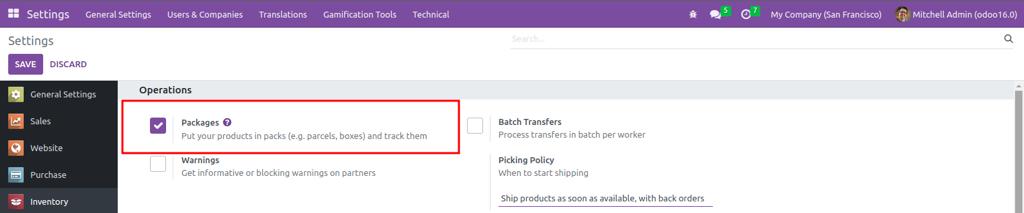
The following blog explains the product delivery packages in odoo 16. Packages can be enabled in the Operation section of the Inventory settings.: Configuration > Settings > Packages and save changes.
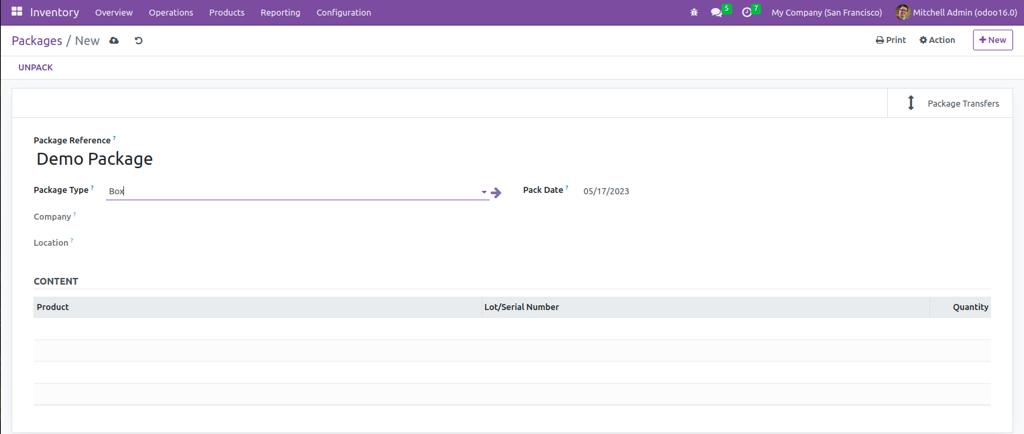
To make a new package, go to the products > Packages in inventory module.

Proceed by clicking the "Create" button and provide the necessary details for the package. Fill in information such as the package reference, package type, shipping weight, company, and location. You can mention the package type by selecting the newly created package type from the dropdown menu in the "package type" field.
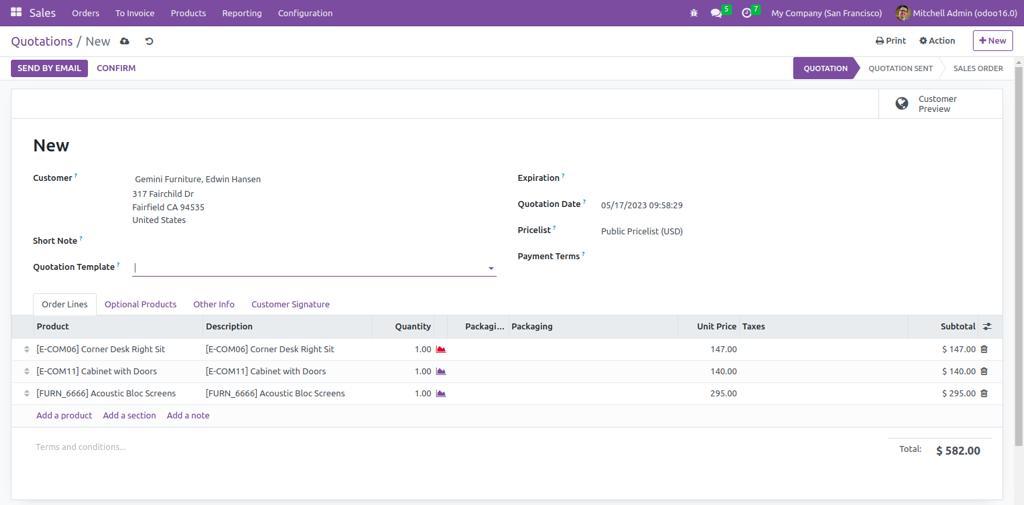
For using this package lets create a sales order and add three Different products.
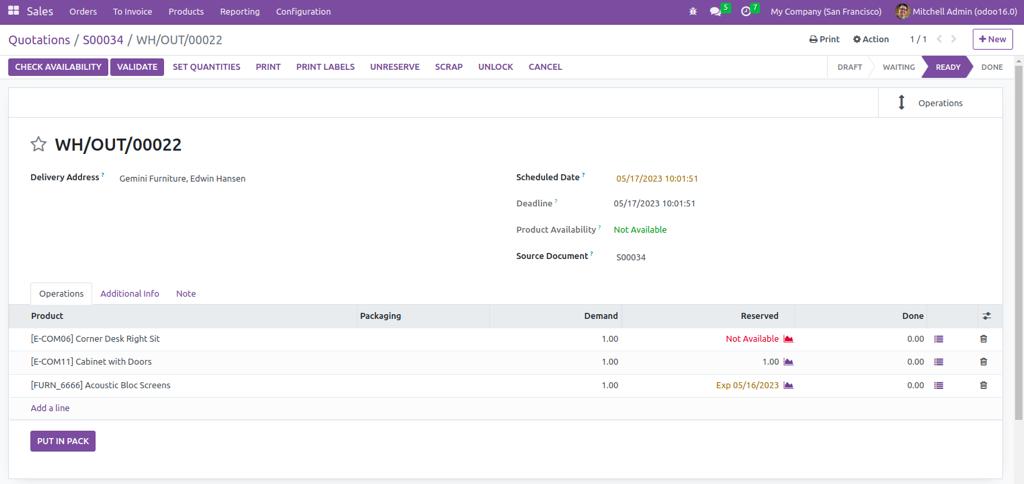
After Confirming the order go to the delivery configuration window to pack the products. Give the done quantities then click the button ‘PUT IN PACK.’ When clicking PUT IN PACK, a new package is created and assigned to the destination package.
These products have been added to a new package. It is possible to change the package's destination. These items can be added to the newly generated package DEMO PACK
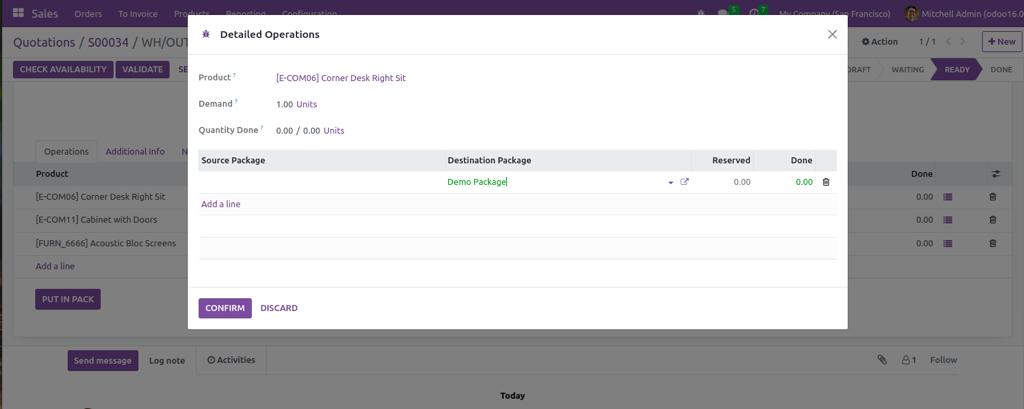
The products will be delivered to customers in the parcel or box called 'Demo Package' at a
later stage. This encompasses the entire concept of product packages in Odoo 16
Ready to see this in your business?
Book a free demo and we'll show you exactly how AGM runs it on Odoo.