The Subscriptions app seamlessly integrates the sale of subscription products with regular sales items, presenting a distinctive feature where regular products are offered on a one-time purchase basis...
The Subscriptions app seamlessly integrates the sale of subscription products with regular sales items, presenting a distinctive feature where regular products are offered on a one-time purchase basis, while subscription products are designed for recurring purchases, contributing to the generation of steady, recurring revenue.
Open the subscription menu and user can view this screen
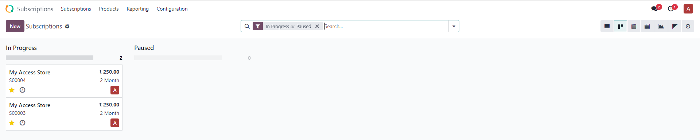
Let's explore the steps to create and manage a subscription:
Create a new recurring plan
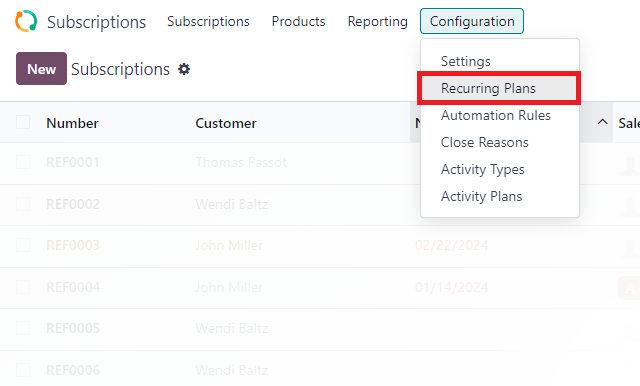
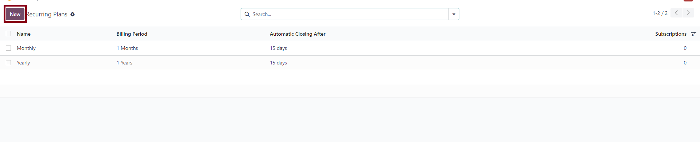
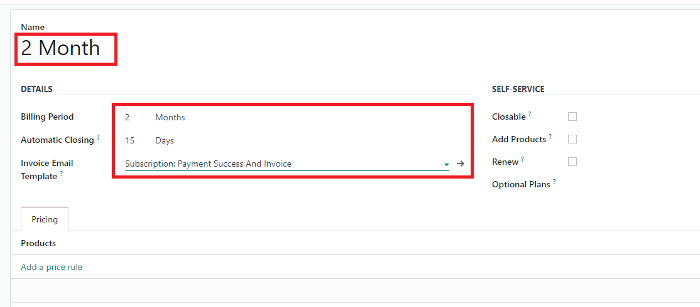
Begin by accessing the subscription menu. Here, users are presented with the option to create a new plan or utilize existing plans provided by Odoo, such as monthly or yearly. For illustration purposes, let's proceed with the creation of a two-month recurring subscription plan.
Create a new product for subscription.
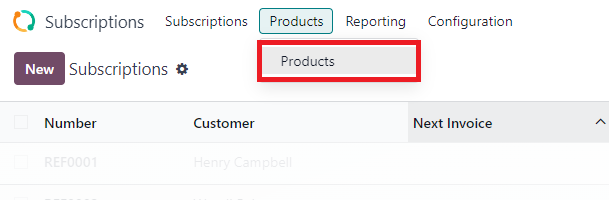
A crucial prerequisite for setting up a subscription is the creation of a product. Navigate to the product submenu within the subscription module and initiate the creation of a new product.
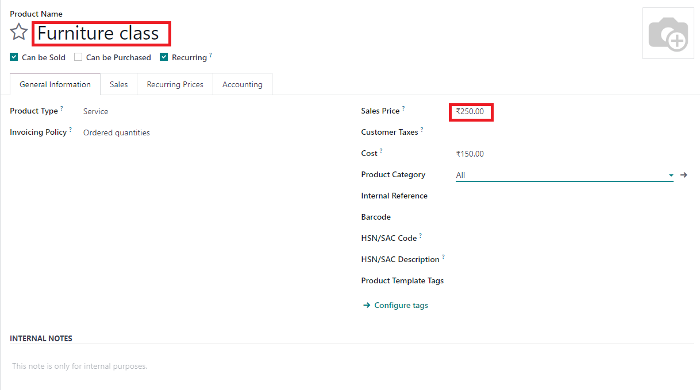
Provide a name for the product. Given that the user is delivering a service, "Can be purchased" is left unmarked, while "Recurring" is selected to indicate that this product is suitable for subscription usage. Additionally, specify the sale price for the product.
Creating a Quotation template.
To streamline the subscription creation process, consider setting up a Quotation template that encompasses all the plans a user intends to offer. Activate Quotation templates in the settings.
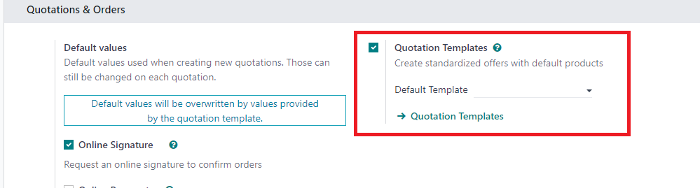
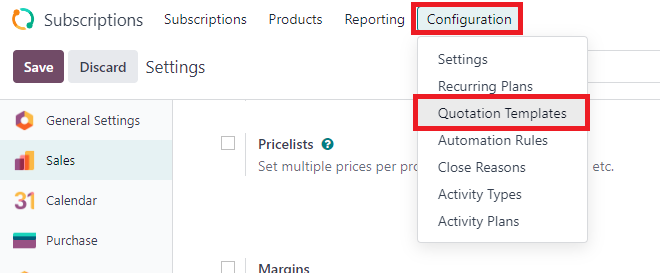
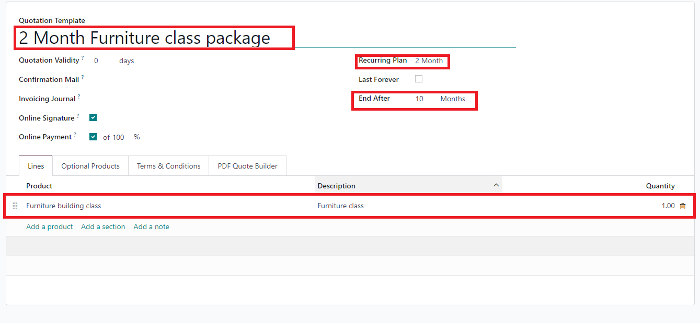
Navigate to Quotation templates in the configuration and generate a new template
Assign a name to the template, select the desired recurring plan, determine the subscription end date, incorporate the product intended for subscription sales, and save the template.
Creating the subscription.
Access the subscription submenu within the subscription module and initiate the creation of a new subscription..
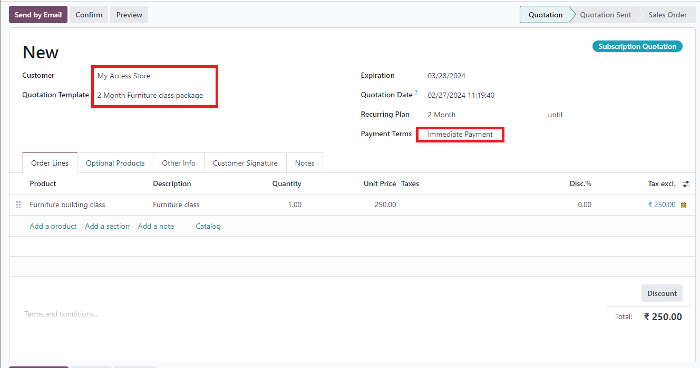
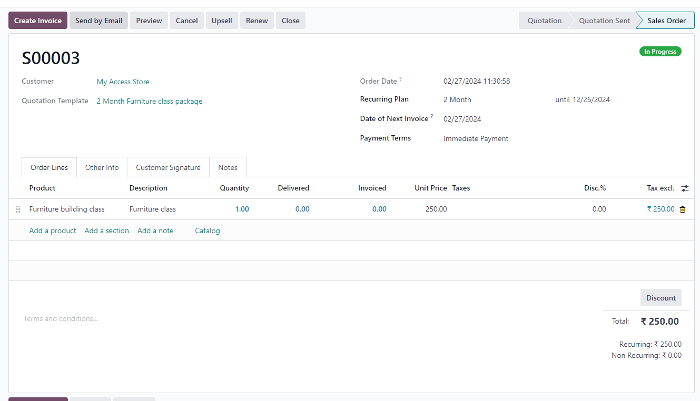
Enter the customer's name. Upon selecting the previously configured quotation template, various details such as the recurring plan and associated products are automatically populated. Users have the flexibility to modify payment terms before confirming the subscription.
.
Write one or two paragraphs describing your product or services. To be successful your content needs to be useful to your readers.
جاهز لرؤية هذا في أعمالك؟
احجز عرضاً توضيحياً مجانياً وسنُريك بالضبط كيف تُشغّله AGM على Odoo.