Dropshipping is a way of selling products without keeping them in your own stock. When a customer places an order, the seller forwards that order to a supplier, and the supplier ships the product directly to the customer. This helps the seller avoid warehouse costs and the risk of unsold items. Odoo makes dropshipping even easier by automating tasks like creating purchase orders, tracking shipments, and managing suppliers. With Odoo, businesses can quickly set up dropshipping and manage the whole process smoothly, whether they are new to this model or looking to improve their workflow.
Advantages of dropshipping
1. Low Upfront Investment
Dropshipping requires very little starting capital because you don’t buy products in advance. You only purchase items after a customer places an order, which reduces financial risk.
2. Easy to Scale
Businesses can easily add more products without needing extra storage space or warehouse management. This makes it simple to grow and adapt to market demand.
3. Location Flexibility
Since there is no inventory to handle, you can run a dropshipping business from anywhere—home, office, or even while traveling.
4. Low Operating Costs
There’s no need for warehouses, packing teams, or shipping equipment. Suppliers handle all fulfillment tasks, keeping expenses low.
5. Wide Product Variety
You can offer a large range of products without storing them yourself. This helps you test new items, follow trends, and provide customers with more choices.
Dropship Configuration in Odoo 18
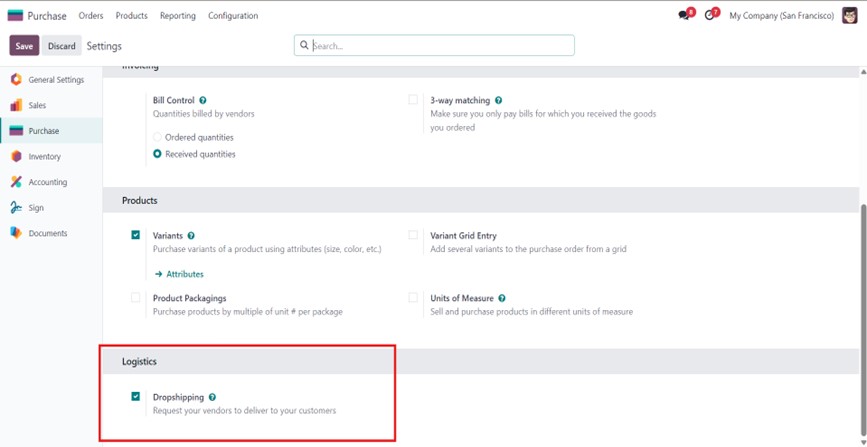
Dropshipping can be easily configured by users directly from the Logistics settings in the Odoo 18 Purchase module.
Purchase → Configuration → Settings → Logistics → Dropshipping
OR
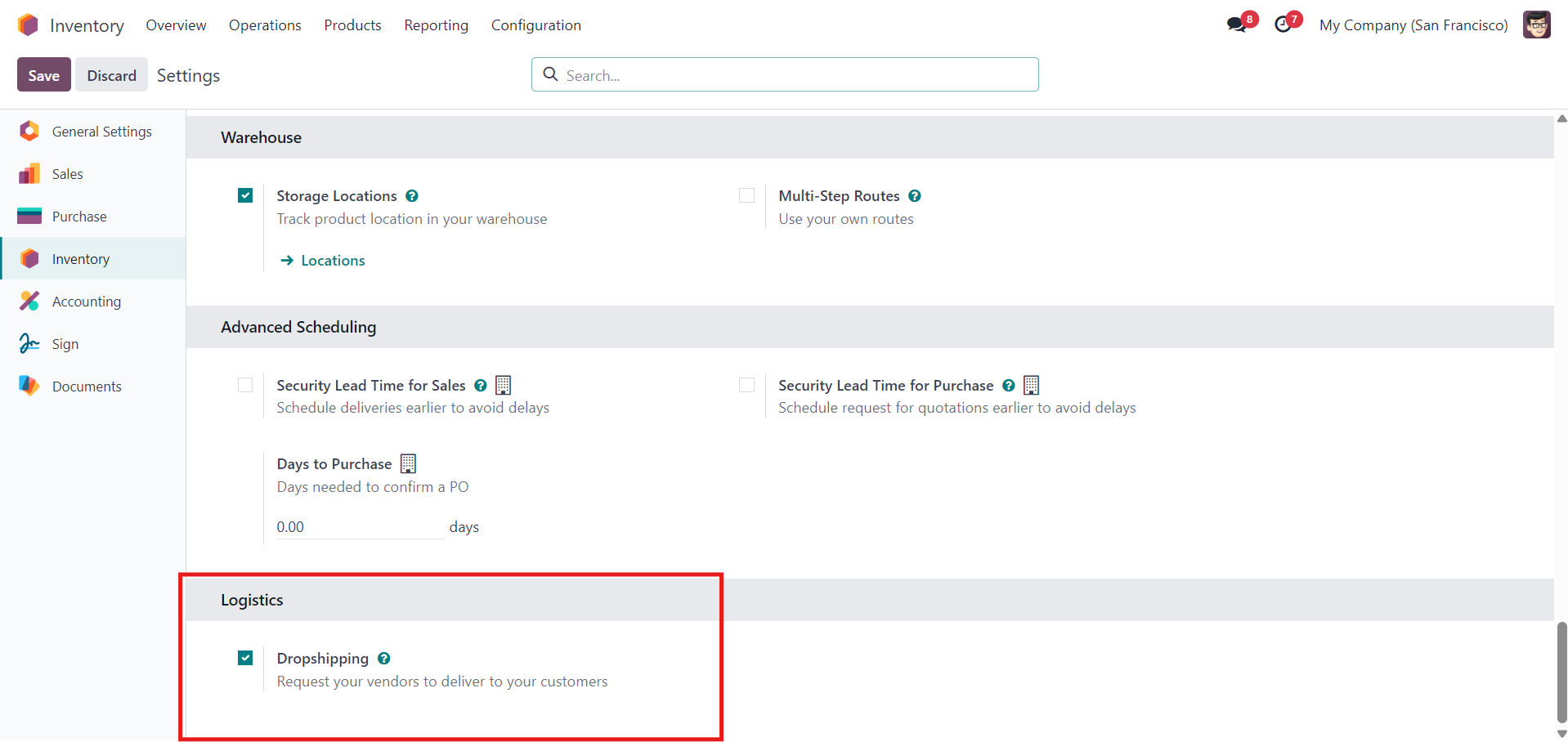
Inventory → Configuration → Settings → Logistics → Dropshipping
Configure products to be dropshipped
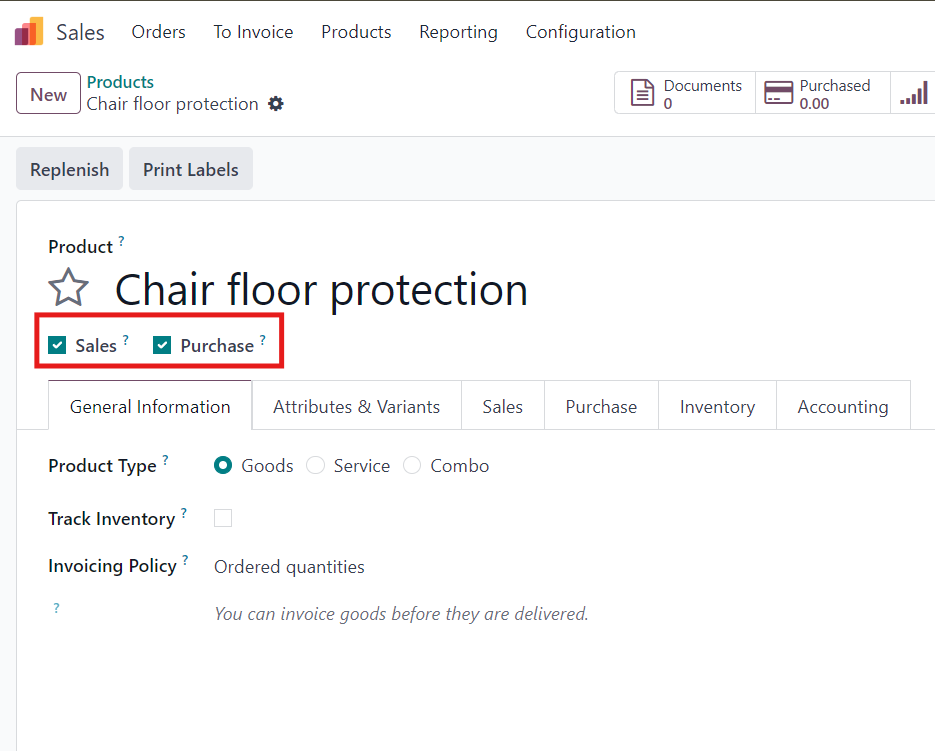
- Go to the Sales module and open Products → Products.
- Select an existing product or click Create to add a new one.
- On the product form, enable both Can be Sold and Can be Purchased.
- These settings allow Odoo to create:
- A Sales Order for the customer
- A Purchase Order for the supplier
- With both options enabled, Odoo can automatically generate all required documents and follow the correct dropshipping workflow.
Adding Vendor Information for Dropshipped Products
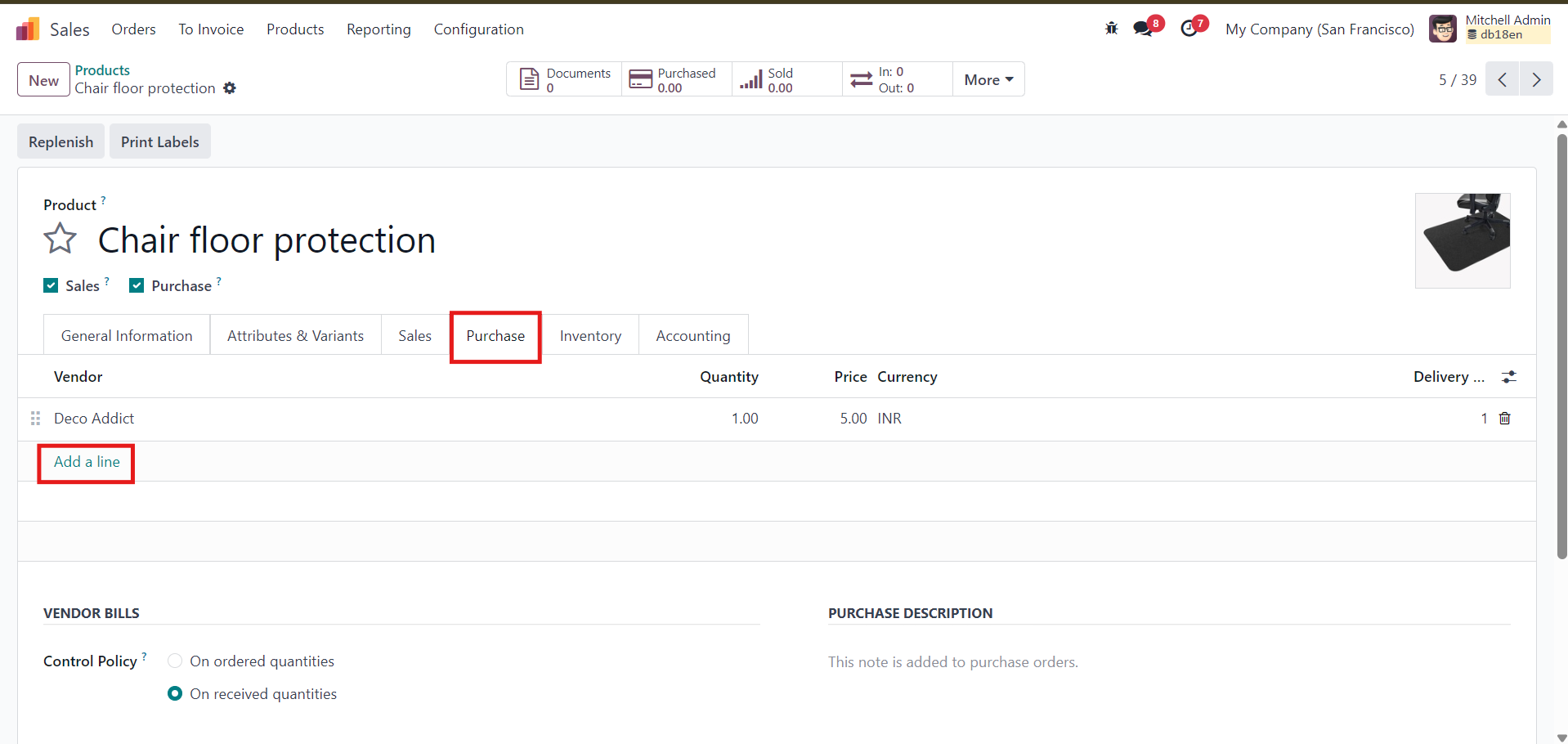
- Open the product and go to the Purchase tab.
- Add a vendor who will supply the product.
- Enter the price the vendor charges for the item.
- You can add multiple vendors if needed.
- The vendor listed at the top will be automatically selected by Odoo when creating purchase orders.
- This ensures the correct supplier and accurate pricing are used during dropshipping.
Assigning the Dropship Route to the Product
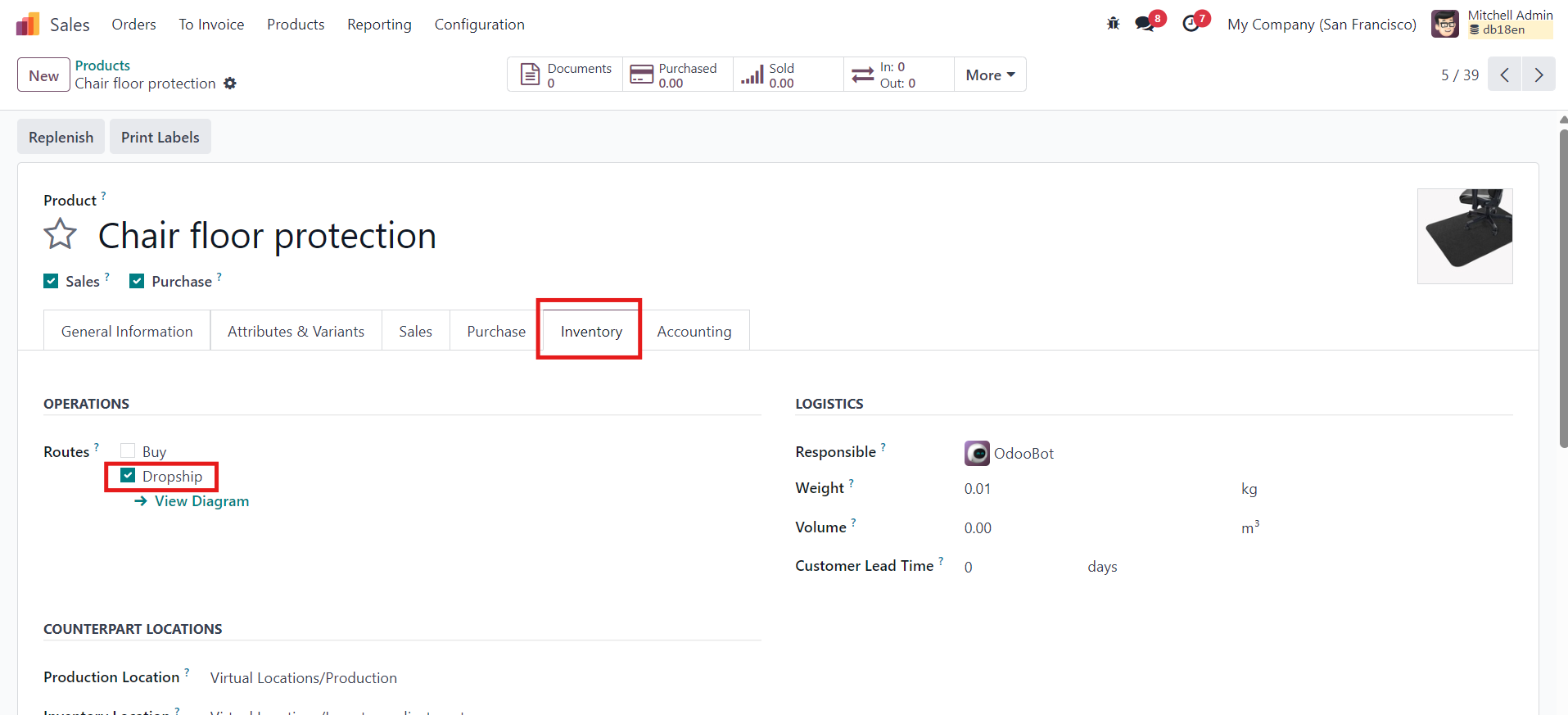
- Open the product and go to the Inventory tab.
- In the Routes section, enable the Dropship checkbox.
- This tells Odoo to skip your warehouse and ship products directly from the vendor to the customer.
Fulfill orders using dropshipping
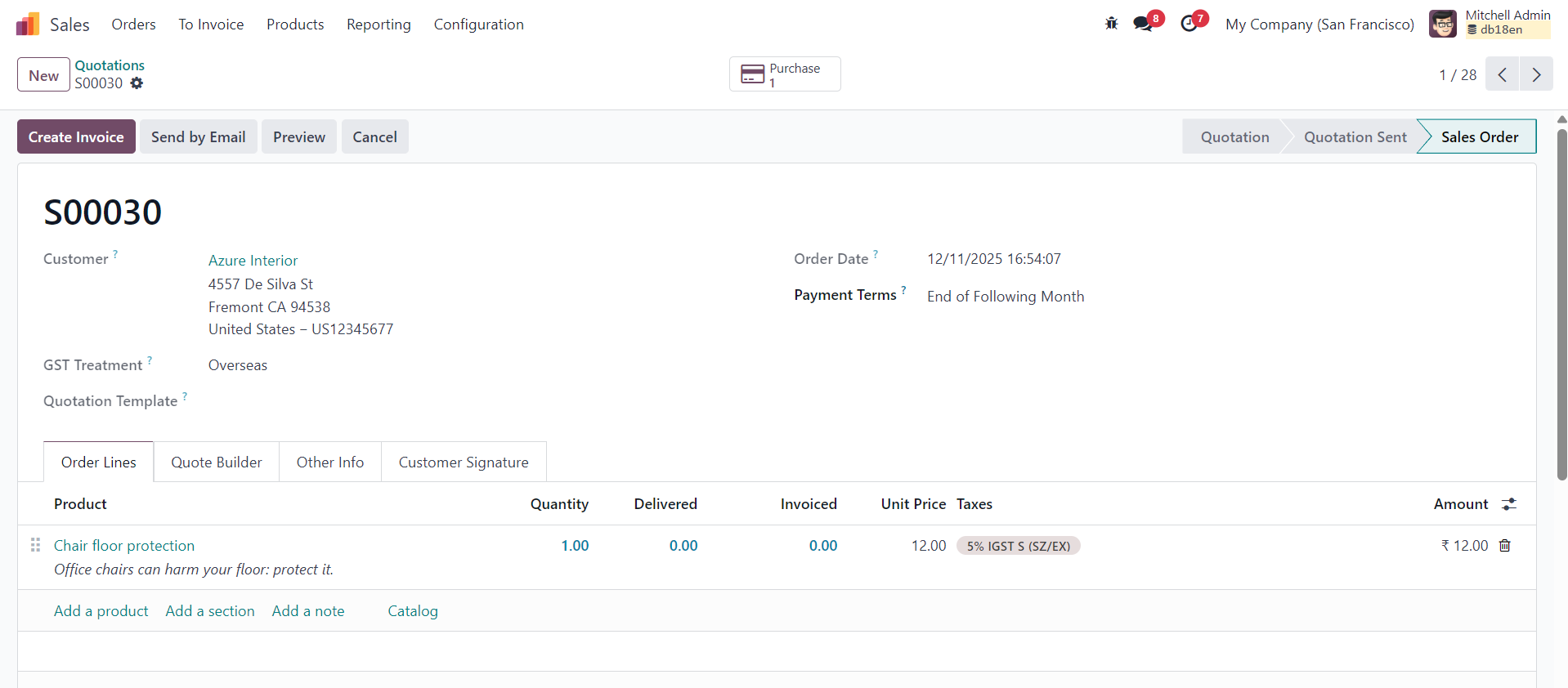
Once the product is fully configured for dropshipping, you can begin fulfilling customer orders with ease. Start by creating a new Sales Order in the Sales app, add the dropship-enabled product, and confirm the order. As soon as the sales order is confirmed, Odoo automatically generates a corresponding Purchase Order for the selected vendor. On the sales order, you’ll notice a small Purchase smart button (icon) appear at the top, which allows you to quickly access the linked purchase order. This automated connection ensures a smooth workflow where the supplier ships the product directly to the customer without involving your warehouse operations.
Confirming the Purchase Order and Processing the Dropship Delivery
- Review the automatically created Request for Quotation (RFQ).
- Click Confirm Order to convert the RFQ into a Purchase Order.
- Odoo will automatically generate a Dropship Receipt linked to this PO.
- This receipt represents the vendor shipping the product directly to the customer, not to your warehouse.
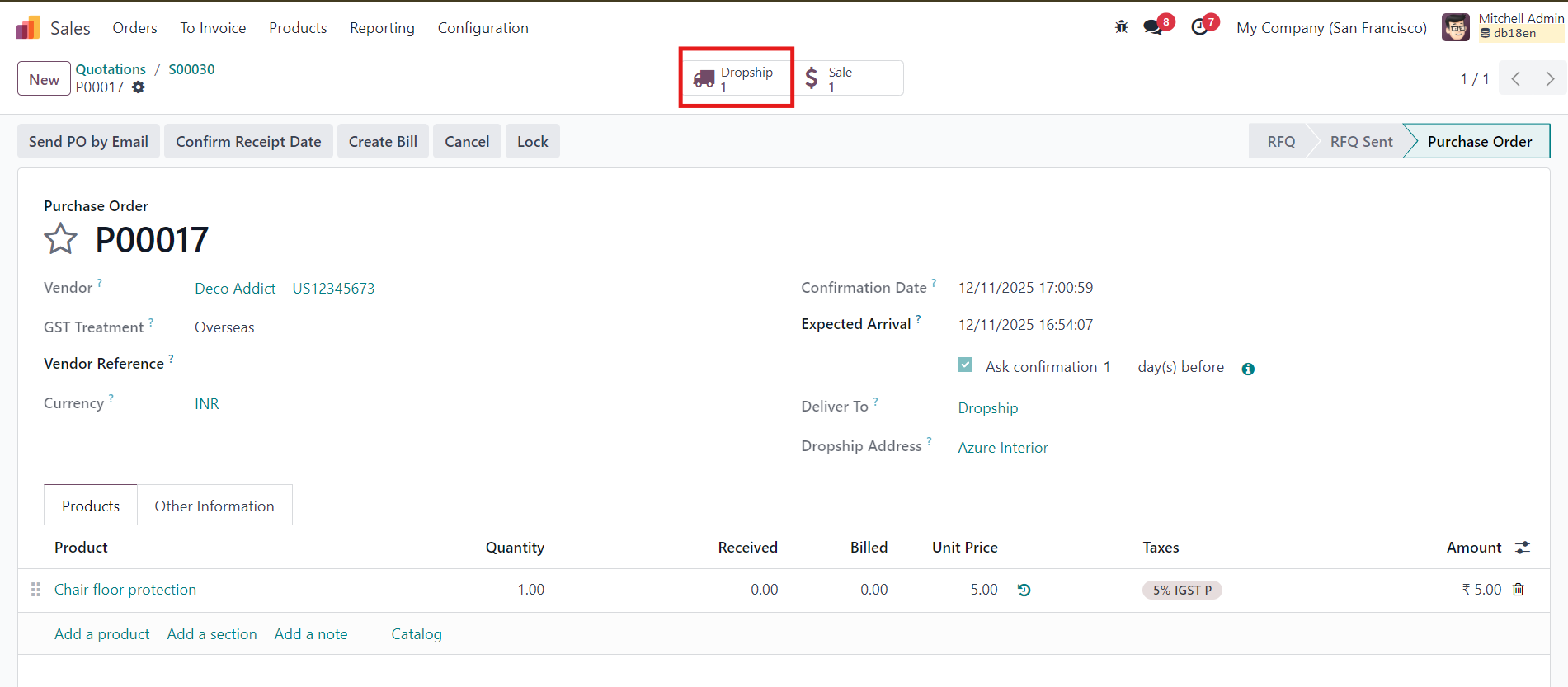
- Open the dropship receipt using the Dropship smart button on the top-right of the purchase order.
- The Dropship route is applied automatically, and the customer’s address is shown in the Dropship Address field.
- After the supplier ships the product, validate the dropship receipt in Odoo.
- Validation updates the related Sales Order and completes the dropshipping process.
- This connection between PO → Dropship Receipt → Sales Order provides full traceability and smooth workflow coordination.
Validating the Dropship Receipt
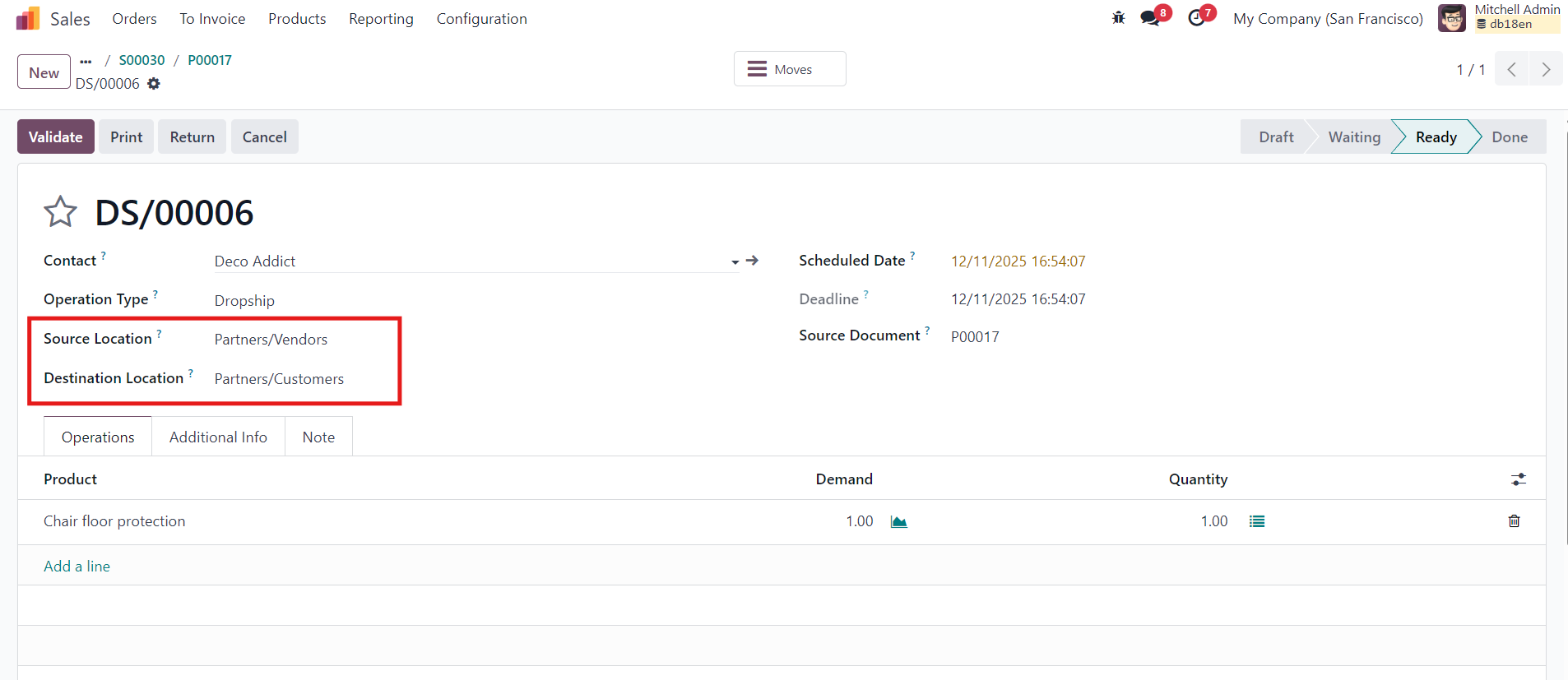
When you open the dropship receipt, you’ll notice that the Source Location is set to Partners/Vendors and the Destination Location is set to Partners/Customers. This clearly indicates that the product is moving directly from the supplier to the end customer without passing through your warehouse. Once the vendor delivers the product, simply click the Validate button at the top-left of the dropship receipt to confirm the delivered quantity. Validating the receipt updates the linked sales order and marks the delivery as complete, ensuring accurate tracking and a smooth end-to-end dropshipping workflow within Odoo.
The bill can be prepared for the transaction after the validation process.
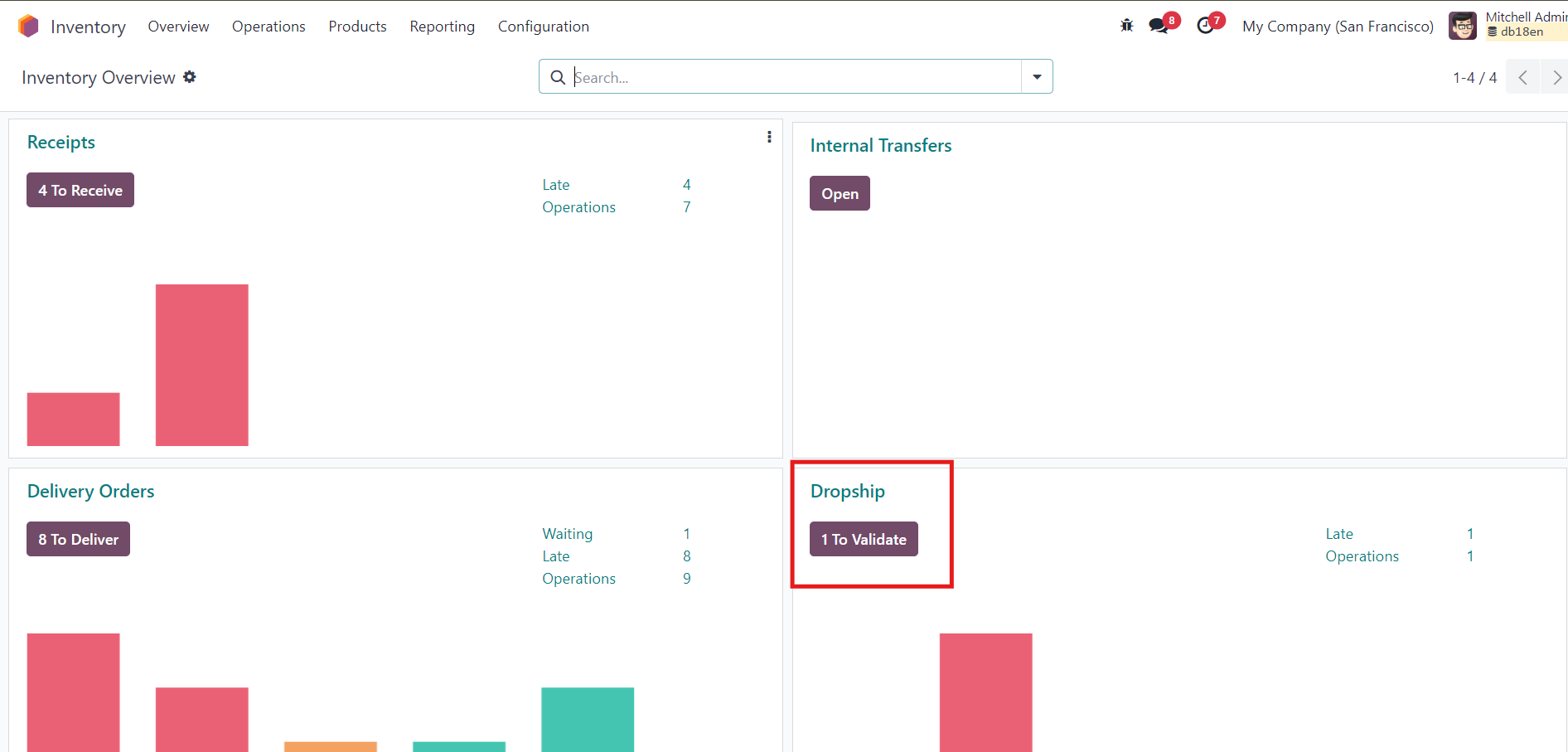
To view all dropship orders, simply navigate to the Inventory Overview dashboard and click the Dropship
Conclusion
Dropshipping in Odoo provides a streamlined and efficient way to manage order fulfillment without the need for physical inventory or warehouse operations. By automating key steps—such as generating purchase orders, creating dropship receipts, and tracking supplier-to-customer deliveries—Odoo ensures a smooth and fully traceable workflow from start to finish. This approach not only reduces operational costs but also offers businesses the flexibility to expand their product offerings with minimal risk. With the right configuration and understanding of the process, Odoo’s dropshipping feature becomes a powerful tool for scaling your business and enhancing customer satisfaction.
Dropshipping in Odoo 18