Odoo CRM is a module in which we can track all of our business interactions with leads and customers and compile all that into one place.CRM provides a more detailed picture of the customer journey and helps to plan and schedule our activities.
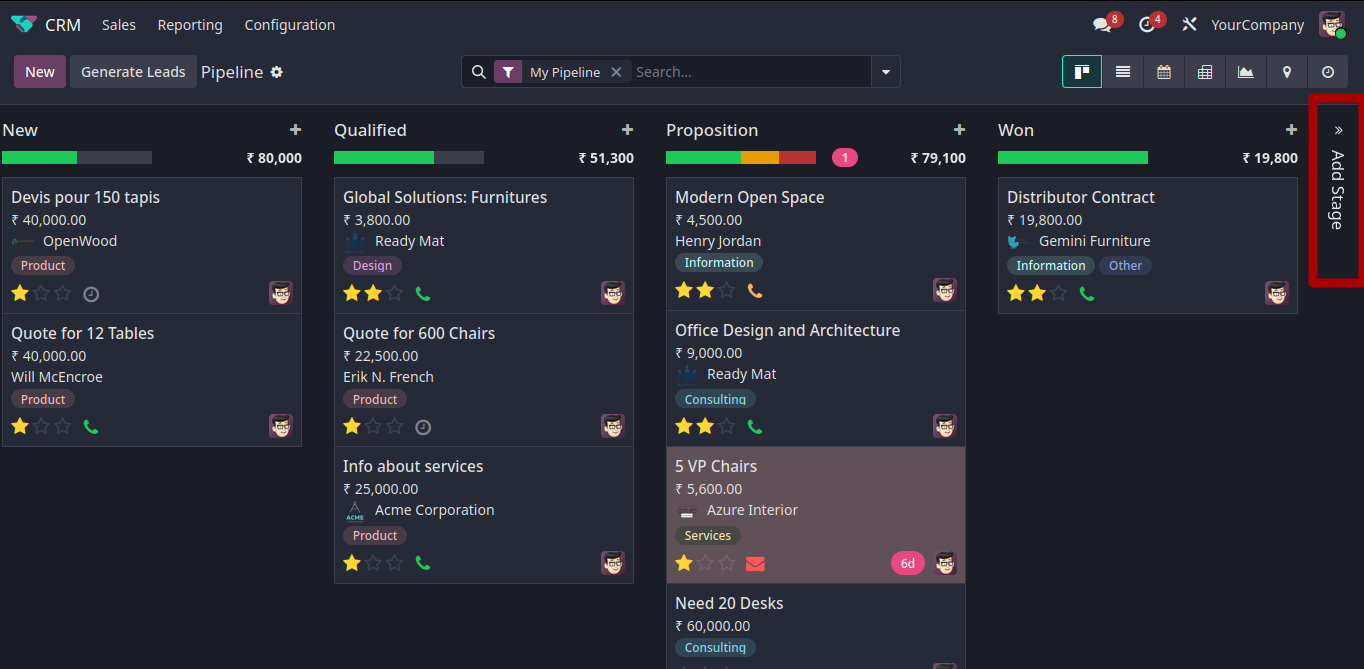
The dashboard menu of Odoo CRM shows a pipeline with a filter given as my pipeline, where you can see your assigned opportunities staged. You can unfilter the ‘my opportunity’ and can see all the opportunities if needed. There, you can see the stages in kanban view, and you can also see submenus like sales, reporting, and configurations. You can check it with the example image given below. Pipelines are used to track leads and opportunities as they progress through the various stages of our sales flow.

You can add a new stage or custom stage by clicking the top right corner ‘>>’ button. When hovering to the right side, it asks for an add stage. As you see in the image below. It will open up an add box in which you can add details of your custom stage.
You can also add opportunities to each stage by clicking the ’ + ‘ (1) given above all stages, and also you can customize each stage by clicking its gear icon(2), which allows users to use different options for customization, like fold, edit, automation, and delete (3) as given below.
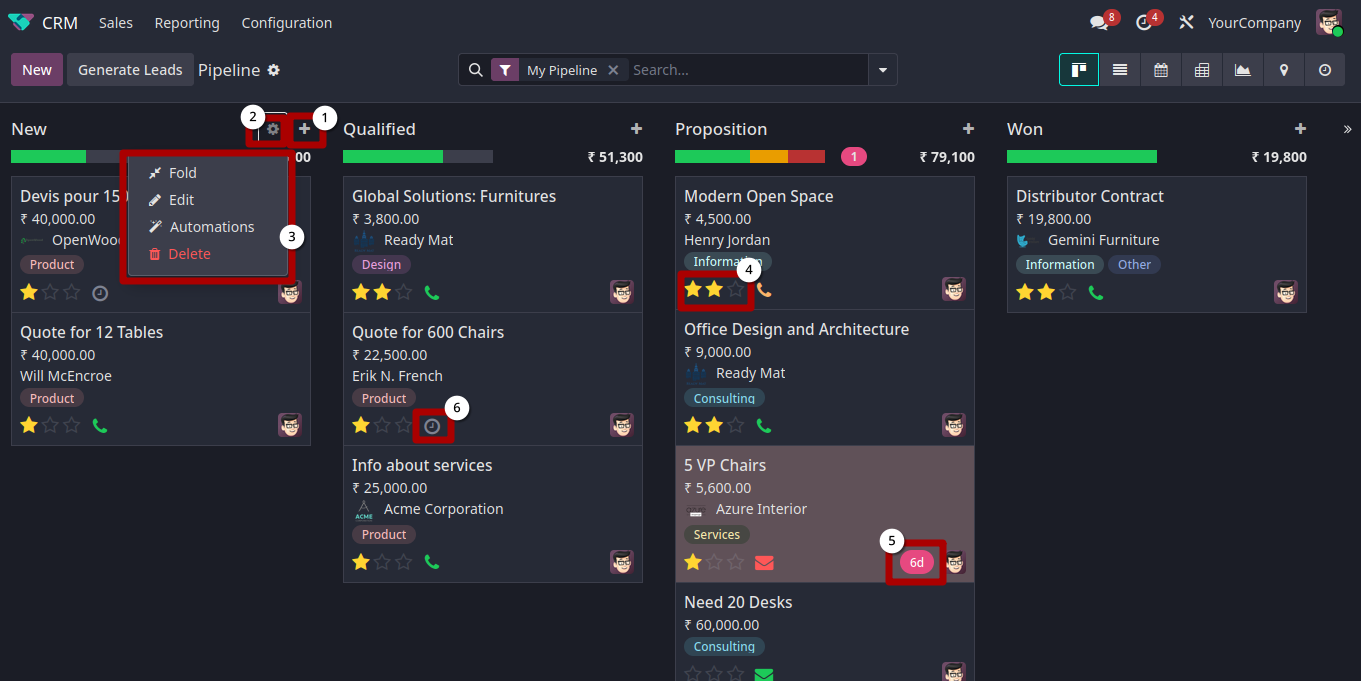
star icon(4) in each opportunity represents the priority you can set for that opportunity. When you set a priority, higher priority will come up.
Rotten number field(5) indicates the lead has been stuck for the given number of days or time period; the opportunity with rotten number possesses a different colour.
Every opportunity will have an Activity schedule icon (6) like phone, paper, clock, envelope, and clusters of people in each opportunity with different colours. They are the scheduled activities.
The clock icon indicates no scheduled activity. The color of the activity icon represents scheduled events. Green means scheduled to happen, yellow means upcoming, and red means overdue.
You can also move stages within each opportunity by dragging and dropping the opportunity to your preferred location, as shown below.

If we click the activity icon, it shows a pop-up and asks to schedule an activity and shows current assigned activities. It will navigate us to a modal, which contains activity, summary, due date, and assigned fields as shown below.

If we press the save button as shown in the above image, it will save our scheduled activity.
If we click each opportunity, we will navigate to a form-like structure, in which you can edit the fields and pass to the next stage. By clicking the three buttons at the top left (won, lost, and enrich )(1), you can set a label to each opportunity as success or failure.

Odoo automatically calculates the probabilities (3) or lead points by monitoring some data points, such as phone quality, email quality, etc and based on historical data. Stages(4) can also be controlled from the form menu.
According to the option, the opportunities will be labeled with a red or green badge.
Once the opportunity was marked as lost, we could also restore it. Odoo provides the restore button as given below.

We can also add custom activities in CRM by navigating to configurations > activity types, where you can create and edit custom activities.

To make a custom activity, fill the activity form with name, action, default user, model, and default note. Also, give the chaining type and suggest which is used to automatically trigger the next activity after the current one is completed. If we set chaining to the parent activity, as this activity, it will automatically get triggered.

We can also set activity plans, which are useful to set a consistent activity flow. For setting activity plans, go to the configuration tab, and there you will find the activity plans menu. When clicking that, we will be navigated to the lead plans list, where we can set custom activity flows.

Here we can set up the flow and trigger mechanism.
In Odoo CRM, the reporting menu shows reports of different entities or records with different views. They include forecast (which shows the amount of revenue possible to generate in the future), pipeline (which consists of opportunities in stages reports), leads (which shows the amount, source, won, and loss of leads), activities (which contains a complete overview of planned activities, done activities, and overdue activities).

In Odoo, reports are usually shown in different views, such as graph view, pivot view, cohort view, and list view, as the image shown in below image.
In the graph view, records are displayed as a bar chart, a pie chart, and a line chart. In pivot view, the records are displayed as spreadsheets, like tables, as rows and columns. In list view, records are displayed in table format. The cohort view shows when they create and progress.

The generate leads button present in the CRM pipeline helps us to generate new leads automatically by Odoo. For that, we have to give input like company, country, industry, then Odoo will automatically search and find leads.

CRM (customer relationship management) module in Odoo 19